Create two linked pages, then check an edit in page history.
You need a running HMD instance and an account that can write pages. If you host it yourself, complete Install HMD and First-Run Setup first. Otherwise ask the operator for the wiki address, an account and a namespace you can write in. The examples use a namespace named notes; substitute yours. No Git remote or AI assistant is needed.
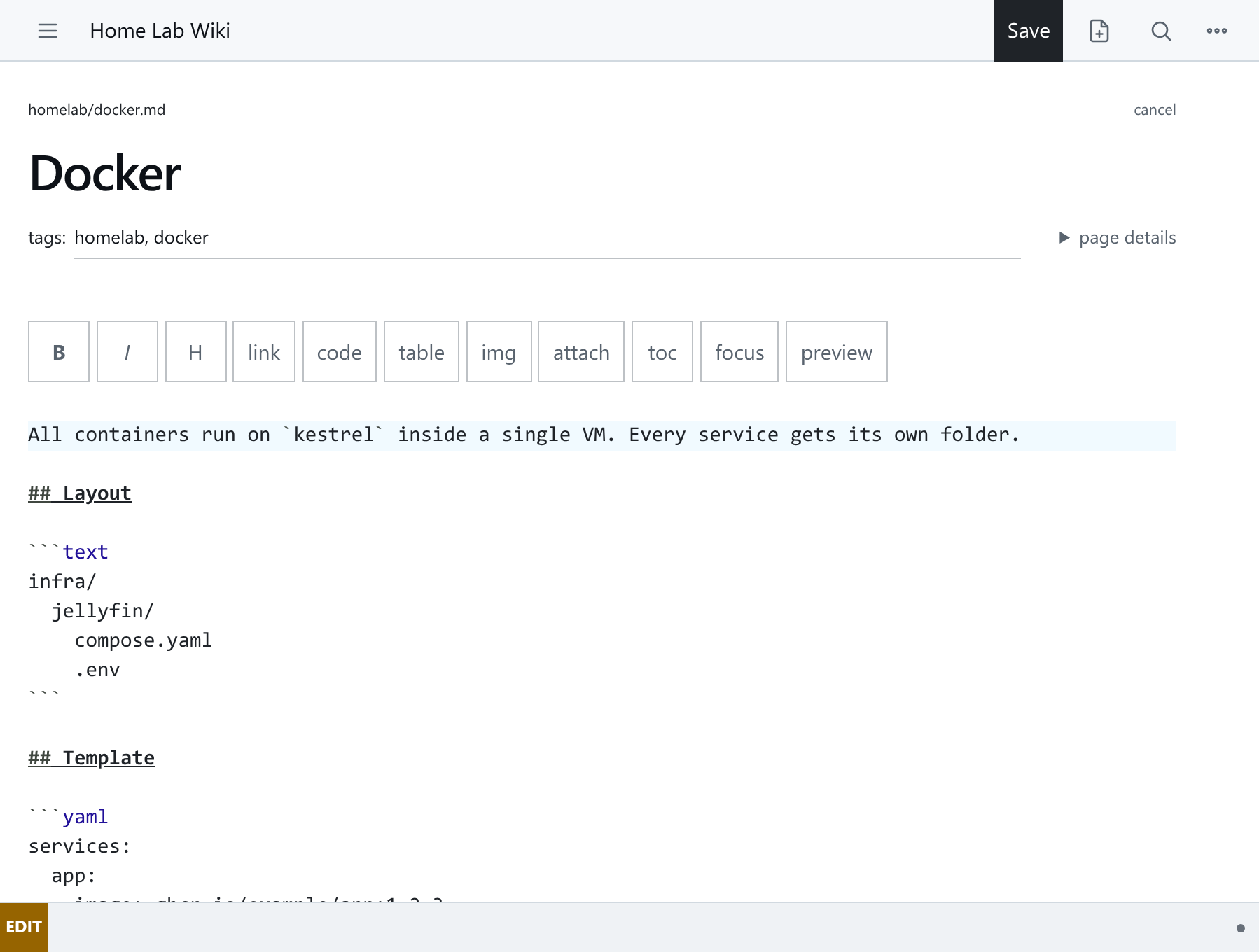
1. Create a project page
-
Open your namespace and click New in the top bar.
-
Type the title
Weekend Projectwhere the page title sits, and the tagprojectbelow it. -
Open page details and set the path to
notes/weekend-project(no.md). -
Paste this into the editor:
Build a small website for our walking group. ## Plan - [ ] Choose a name - [ ] Add the next walk - [ ] Share the website with the group ## Notes Keep the first version simple: a welcome page and a list of walks. -
Click Save, or press Ctrl+S (Cmd+S on macOS).
The page is now at /notes/weekend-project and appears in the namespace's page tree. HMD commits to Git for you.
2. Add a second page
Click New again. Use the path notes/launch-checklist, the title Launch Checklist and the tag project. Paste and save:
Before sharing the website:

- [ ] Check the date and meeting point
- [ ] Test the website on a phone
- [ ] Ask someone else to read the welcome page

Part of [[Weekend Project]].
[[Weekend Project]] is a wiki-link: HMD finds the page by its title. Click it on the saved page to go back to the first one.
3. Link back
-
On Weekend Project, click Edit.
-
Add this below the notes:
Ready to share? Work through [[Launch Checklist]]. -
Save, then follow the link.
Use the exact page title inside the brackets. A link to a page that does not exist shows as a missing link; see Links And Navigation.
4. Edit and check history
- Edit Launch Checklist and change one
[ ]to[x]. - Save.
- Open history on the page.
- Click view on the earlier revision to see the unchecked task.
- Click View current version to return.
Every save creates a revision. revert restores an older version as a new revision and keeps the history. See Pages.
5. Find your work again
Click the search icon in the top bar and search for walking group. Search covers page text as well as titles. This searches your running instance, not the static documentation site.
Recap
- A page has a path, a title and Markdown content.
- A namespace groups pages; here it is
notes. - A wiki-link connects pages by title.
- Save records the page and its history in Git.
Neither page is public unless the namespace is public.
Next steps
- HMD Concepts: pages, namespaces, Git and publishing.
- Markdown And The Editor: formatting, tables and diagrams.
- Attachments: screenshots and supporting files.
- Static Export: publish a read-only copy.