Create, edit and version pages in the editor, and recover older versions from history.
Create and edit a page
You need a signed-in account with write access to the namespace. For a worked example, see Your First Wiki.
-
Click New in the top bar. The editor opens with the path pre-filled with a slug such as
homelab/new. If the namespace declares a quick-create template,ctrl-j(cmd-jon macOS) and the command palette's>newverb open the editor pre-filled from that template instead. -
Type the title and tags (comma-separated). Open page details to set the path, the page slug such as
homelab/servers(see HMD Concepts). The hidden checkbox there excludes the page from the page list, search, tags and backlinks. -
Write the page. Press preview or
ctrl-e(cmd-eon macOS) to see it rendered, and again to go back to writing.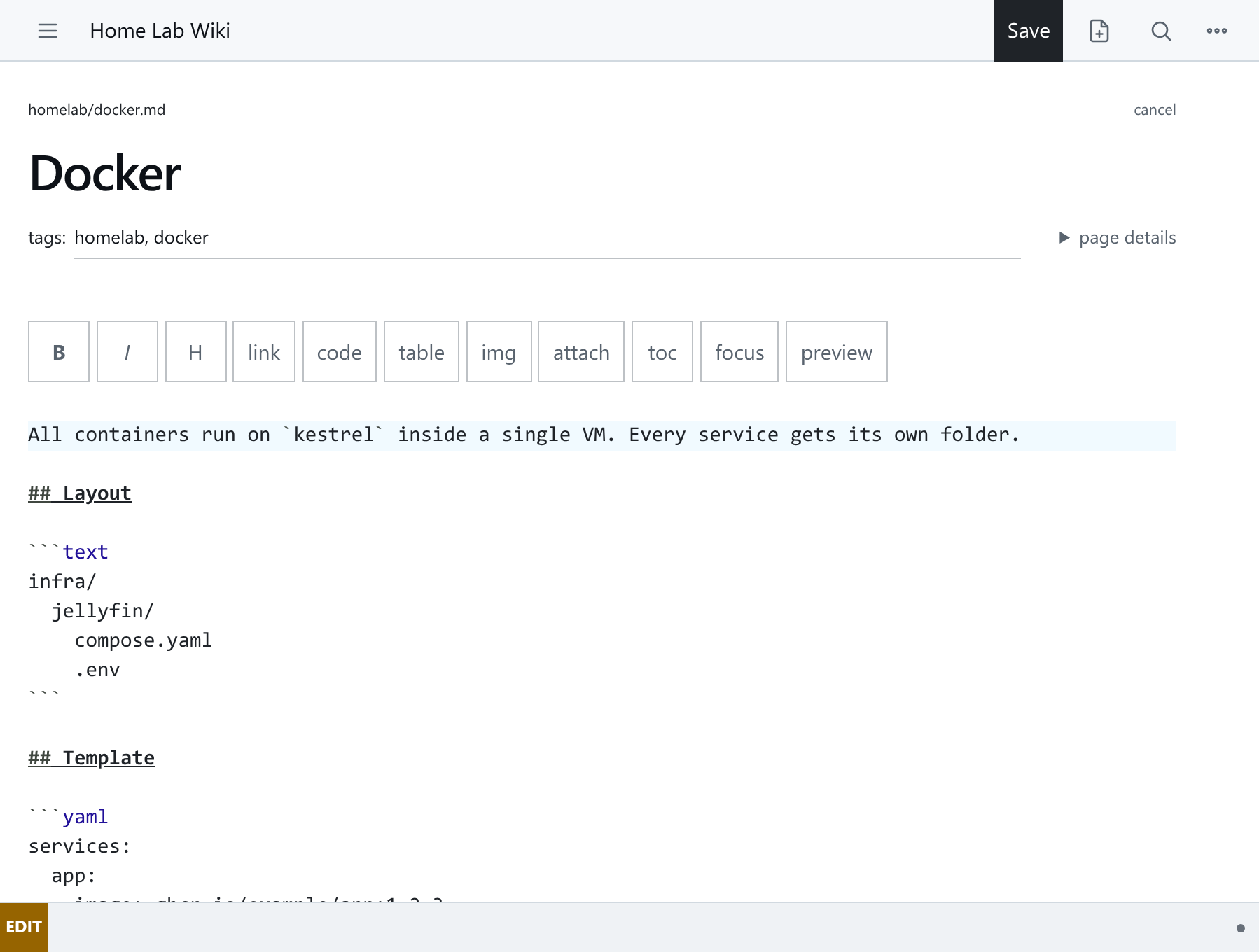
-
Save with Save in the top bar or
ctrl-s(cmd-son macOS).
Each save is a Git commit: new pages produce Create, edits produce Update, and a path change during the edit records a Move.
What HMD writes
Each page is one Markdown file, <slug>.md, with the title and tags in frontmatter:
---
title: Servers
tags: homelab, hardware
---

## Hardware

...
HMD shows the title above the page, so do not repeat it as a # heading.
Read pages in order
Previous and Next at the bottom of a page move through its namespace in page-tree order. They work for signed-in readers, public readers and static exports, and only include pages you can access.
History and revert
- Open a page and choose history, or visit
/<slug>?do=history. - Review the revisions: short hash, commit message, author and date. The current revision is marked.
- Select a revision and choose revert, or use view to read an old version first.
Revert writes the old content as a new commit (Revert <slug> to <short hash>). Earlier commits are never rewritten or deleted. See Git And History for everything HMD commits.
When two people edit the same page
If someone saves the page after you open it, HMD shows a conflict notice instead of overwriting their work.
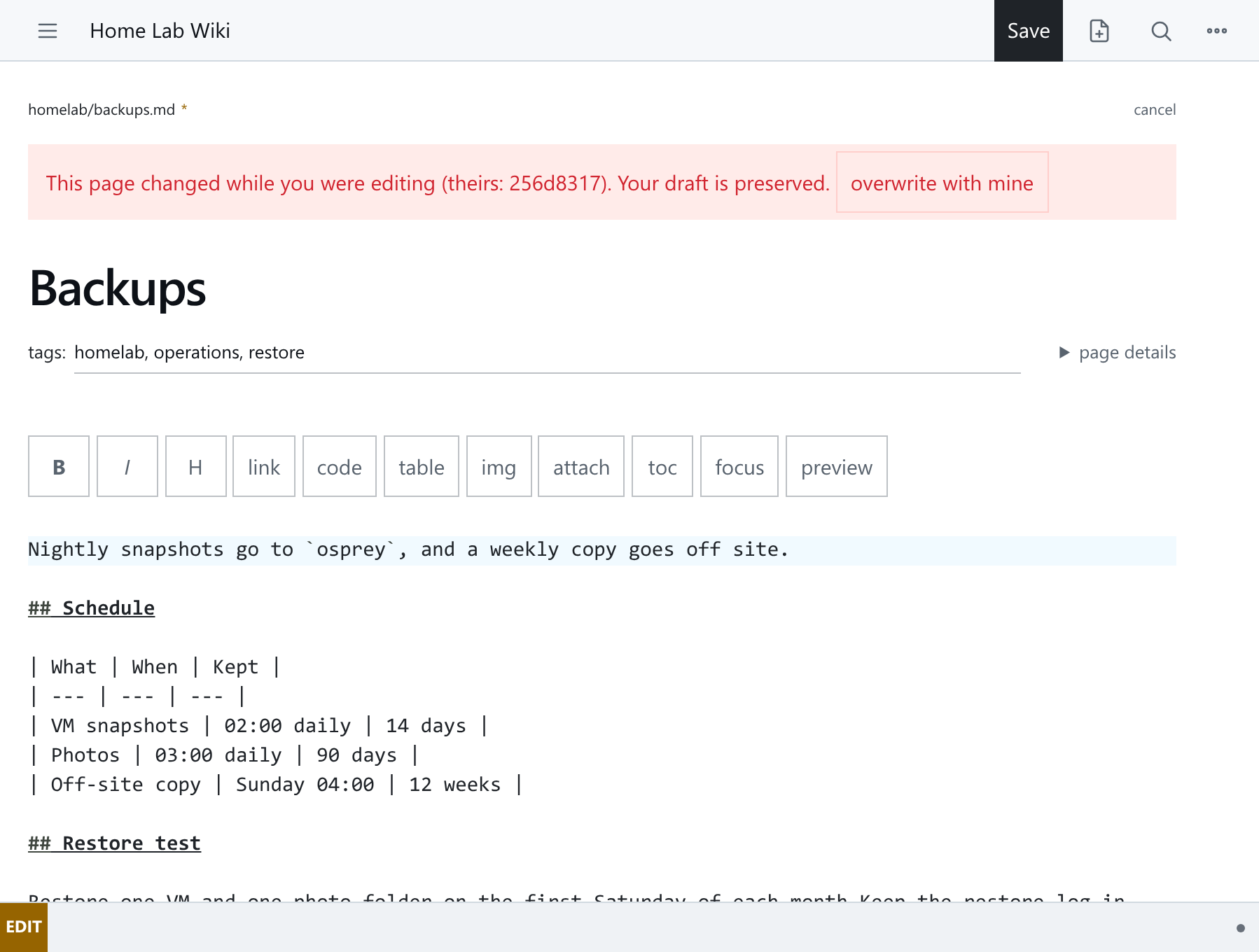
Your unsaved draft is kept. overwrite with mine replaces the newer content, so review the current page in another tab first. Earlier versions stay in history.
Common pitfalls
- Opening the editor does not create a page. A page exists only after a save.
ctrl-jneeds anew:block in the namespace's.namespace.yaml. Without one, use New.- The path field, not the title, decides the slug. Titles can repeat; slugs are unique.